Picking Fulfil
The picking document is the warehouse's instruction to gather a Sales Order's goods off the shelves. It's the first step of the pick → pack → deliver journey, and it records what was picked and how much.
Where to find it: the Picking screen in the menu.
What it is
When a Sales Order is ready to fulfil, a picking document tells the warehouse which items to collect and in what quantity. As the goods are gathered, you record the picked quantities here. Most pickings are created for you from a Sales Order, but you can also raise a stand-alone "care-off" pick that isn't tied to an order.
The list
The Picking list shows every picking document, newest first. Each row is linked to the Sales Order it came from, so you can trace it back at a glance. Search and filter to find one, then click a row to open it.
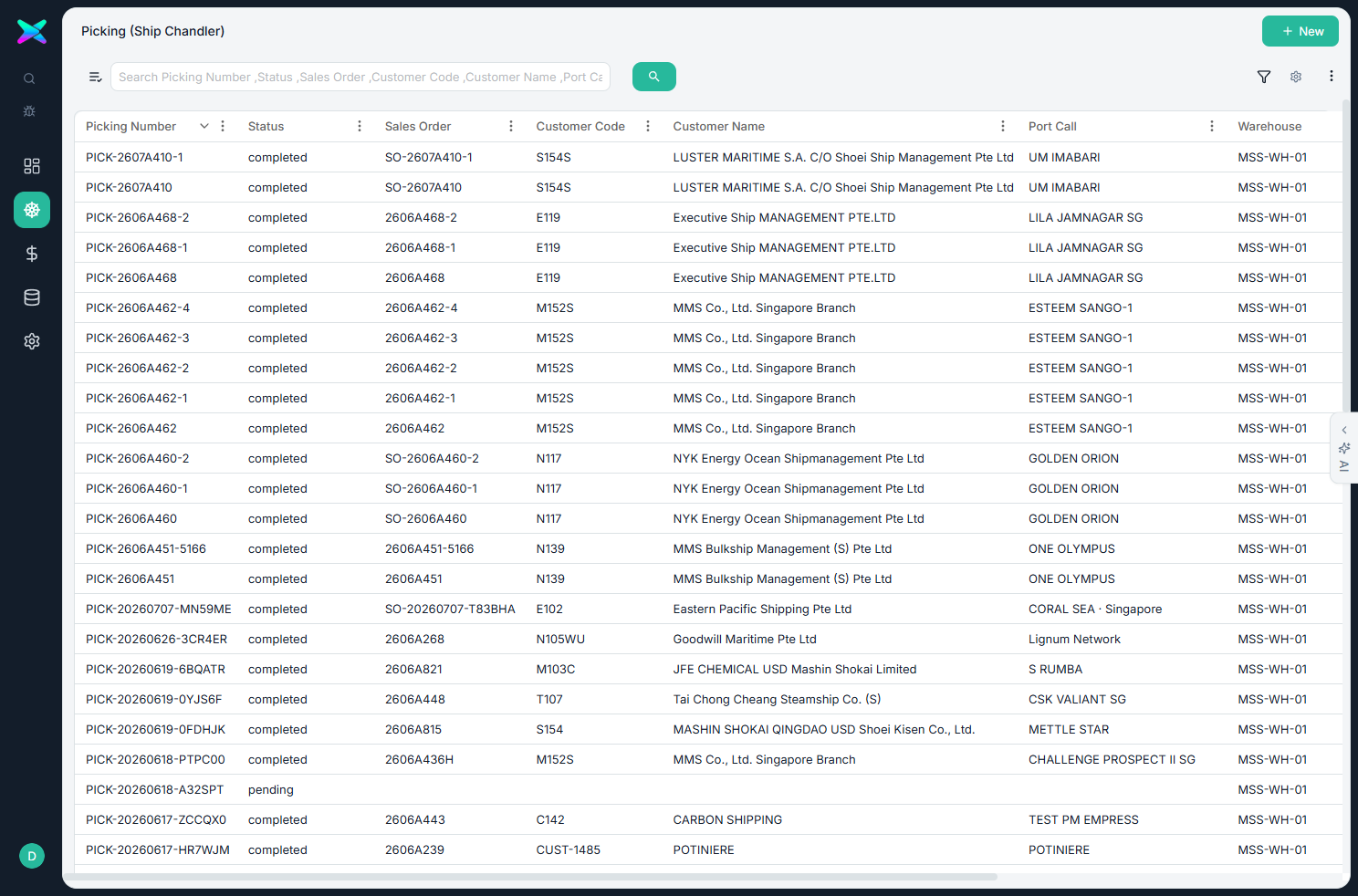
The form
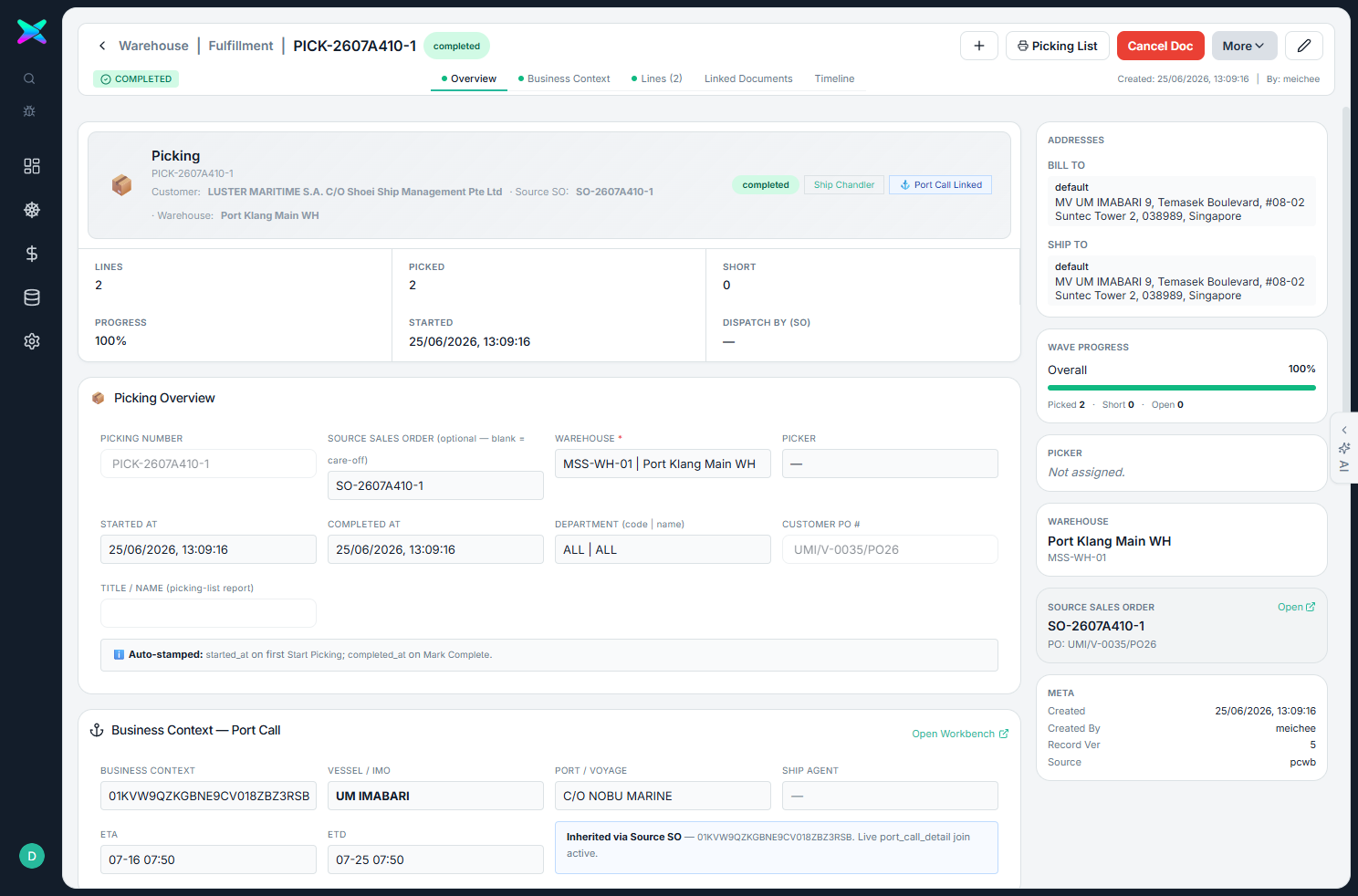
The form is organised into sections:
| Section | What you fill in |
|---|---|
| Overview | Picking number, the source Sales Order (optional for care-off picks), warehouse, picker, start and completion times, department, customer PO number and a report title/name. |
| Port Call | The port call this picking belongs to, so it stays linked to the rest of the visit's paperwork. |
| Lines | Each item to pick — where it's located, the quantity to pick, the quantity actually picked, the line's status, and any batch or serial numbers. |
What you can do
- Track the pick's progress. A picking moves from pending, to in progress (once you click Start Picking), to completed (Mark Complete). You can cancel it even after it's completed, which returns the picked quantities.
- Add and check items. Add lines by hand, import them from a file, and verify items against the product catalogue so you're picking the right thing.
- Handy touches. The warehouse is filled in for you, you can reorder the lines, and you can edit the document number.
How to use
- A picking is usually created for you from a Sales Order (in the fulfilment stage of the Workbench), or you can raise a care-off pick with no order.
- Click Start Picking, then enter the quantities actually picked as the goods are gathered.
- Click Mark Complete when everything is picked.
- Print the Picking List for the warehouse, then move on to Packing.
⬆ Where it comes from
- The Sales Order (via the Workbench), which pre-fills the order and warehouse — or you create a care-off pick yourself.
⬇ What happens next
- Once picked, the goods move on to Packing.
What you can print
Picking List — a clear, printable list for the warehouse team to work from.
The form's top-bar prints just this picking list (the older single report stays on a Print (Legacy) card in the right sidebar). To print several together, tick them on the list and use its Print menu — see Batch Printing.