Port Call Master
A Port Call is where every job begins — one vessel's visit to a port. You create it first, and everything that follows (quotes, orders, purchases, deliveries, invoices) is tied to it. It's also what the Port Call Workbench opens.
Where to find it: the Port Call screen in the menu.
What it is
A port call records one ship's scheduled visit — which vessel, which port, arrival and departure dates, the berth, the agent, and the purpose of the visit. It also names a default customer, though a single port call can serve several customers if needed. Think of it as the "job folder" that holds all the paperwork for that visit together.
The list
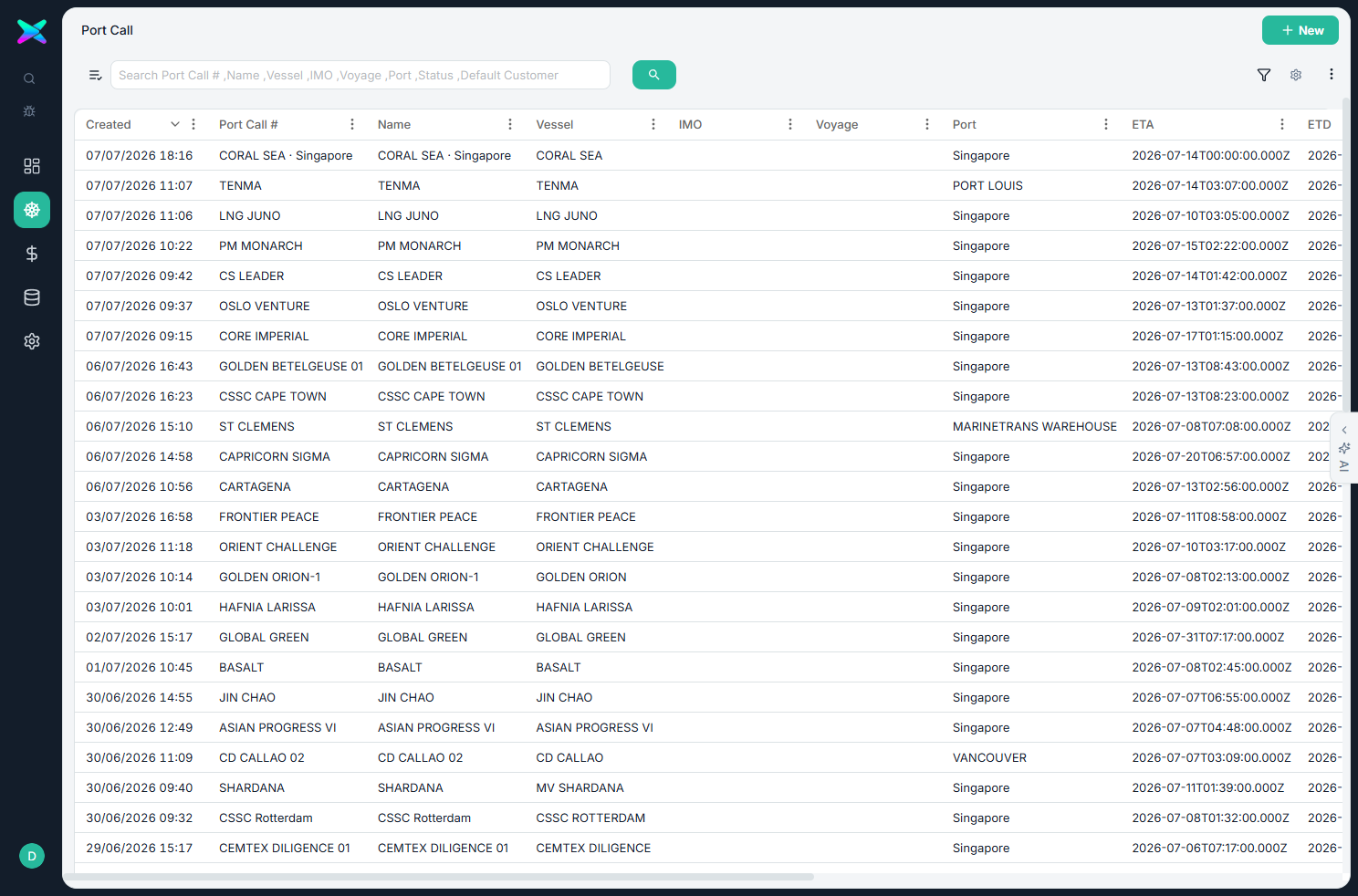
The Port Call list shows every visit, newest first. Because clicking a row opens the Workbench (not a plain form), use the search and filters to find a visit, then click it to start working.
The form
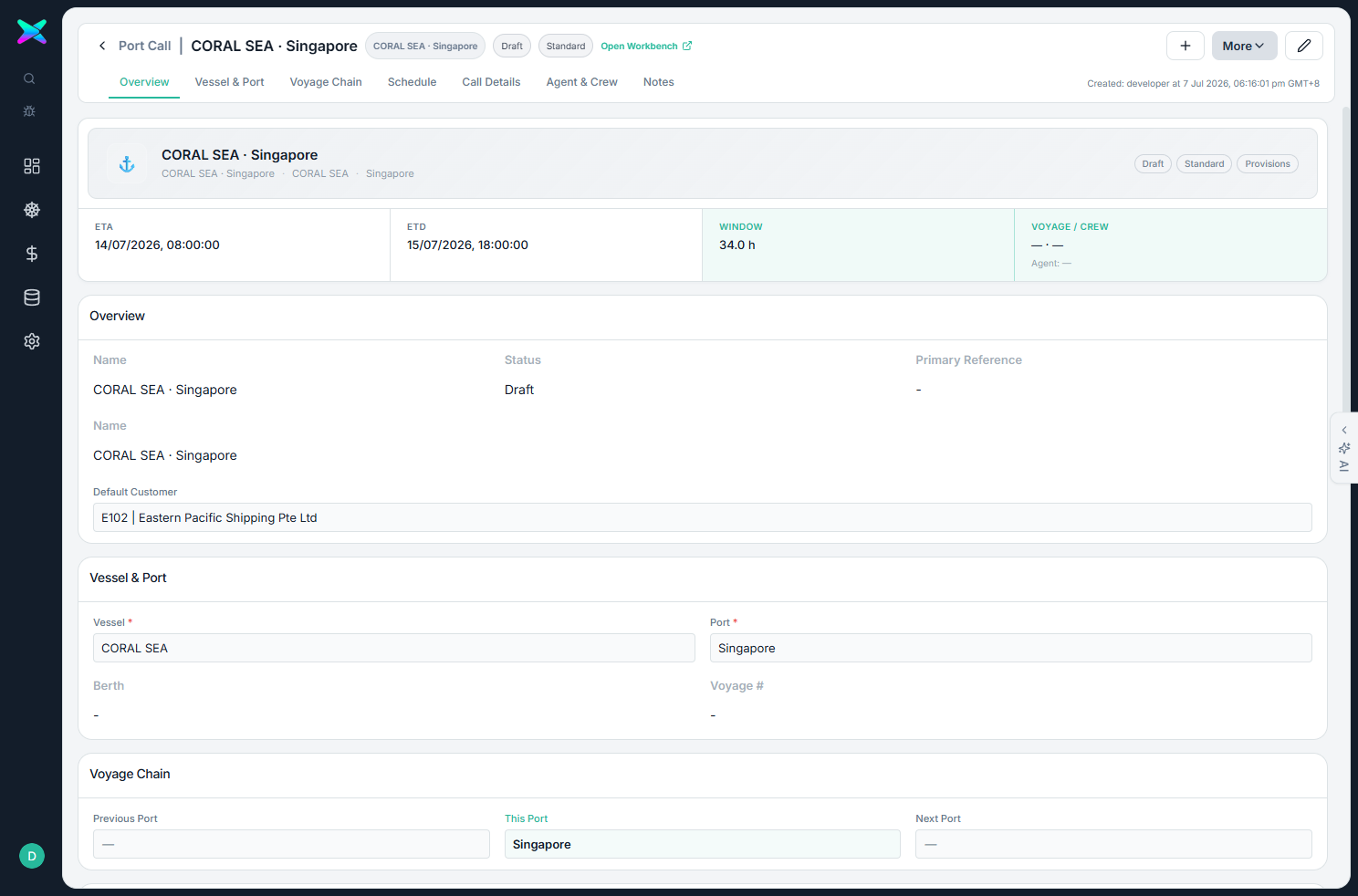
The form is organised into tabbed sections:
| Section | What you fill in |
|---|---|
| Overview | A name for the visit (filled in for you if left blank), status, and the default customer. |
| Vessel & Port | The vessel and port (required), berth and voyage number. |
| Voyage Chain | The previous and next ports on the vessel's voyage. |
| Schedule | Arrival (ETA) and departure (ETD); the app shows the time window between them. |
| Call Details | Purpose (provisions, bunker, crew change, repair…) and priority. |
| Agent & Crew | Agent name and contact details, estimated crew. |
| Notes | Access notes and internal notes. |
What you can do
- Pick the vessel and it fills the customer. Choosing a vessel sets the customer to whoever owns that vessel; you can change it.
- Serve several customers. The customer here is just a default for new documents — a single visit can hold work for more than one customer.
- Automatic dates. Set the arrival and the departure defaults to the next day; the visit window is worked out for you (and departure must be after arrival).
- Handy shortcuts. Save & New, Duplicate Port Call, and Open Workbench.
How to use
- Click + New.
- Pick the Vessel and Port, and set the arrival and departure dates. The customer fills in from the vessel — adjust if needed.
- Add agent and notes if relevant, then Save.
- Click Open Workbench (or click the row from the list) to start quoting — everything you do there belongs to this visit.
⬆ Where it comes from
- This is the starting point — you create it yourself (or duplicate an existing one).
⬇ What happens next
- Customer quotes and orders, supplier requests and purchase orders, deliveries, invoices and payments — all created and tracked from the Workbench for this visit.
What you can print
Nothing is printed from the port call itself — printing happens on the documents it leads to (quotes, orders, delivery notes, invoices).