Customer Payment Finance · AR
The customer receipt — you record the money received and apply it against one or more open invoices, handling any exchange gain or loss and bank charges along the way.
Where to find it: the Customer Payment screen in the menu.
What it is
A Customer Payment records cash coming in from a customer and matches it to the invoices it pays off. One receipt can cover several invoices, and the form keeps a running total of how much has been applied and how much is still spare.
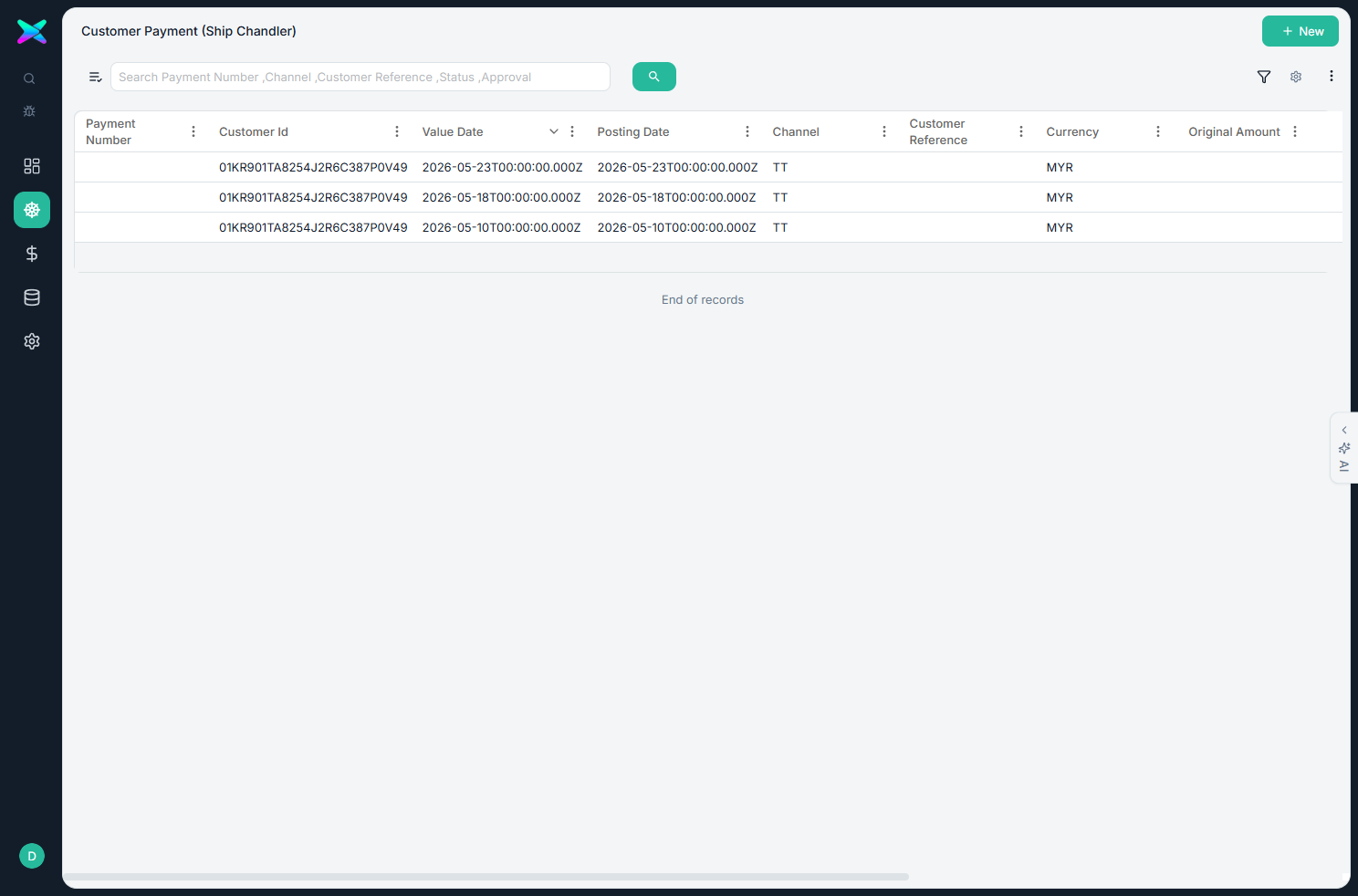
The list
The list shows every receipt. Use + New to record one.
The form
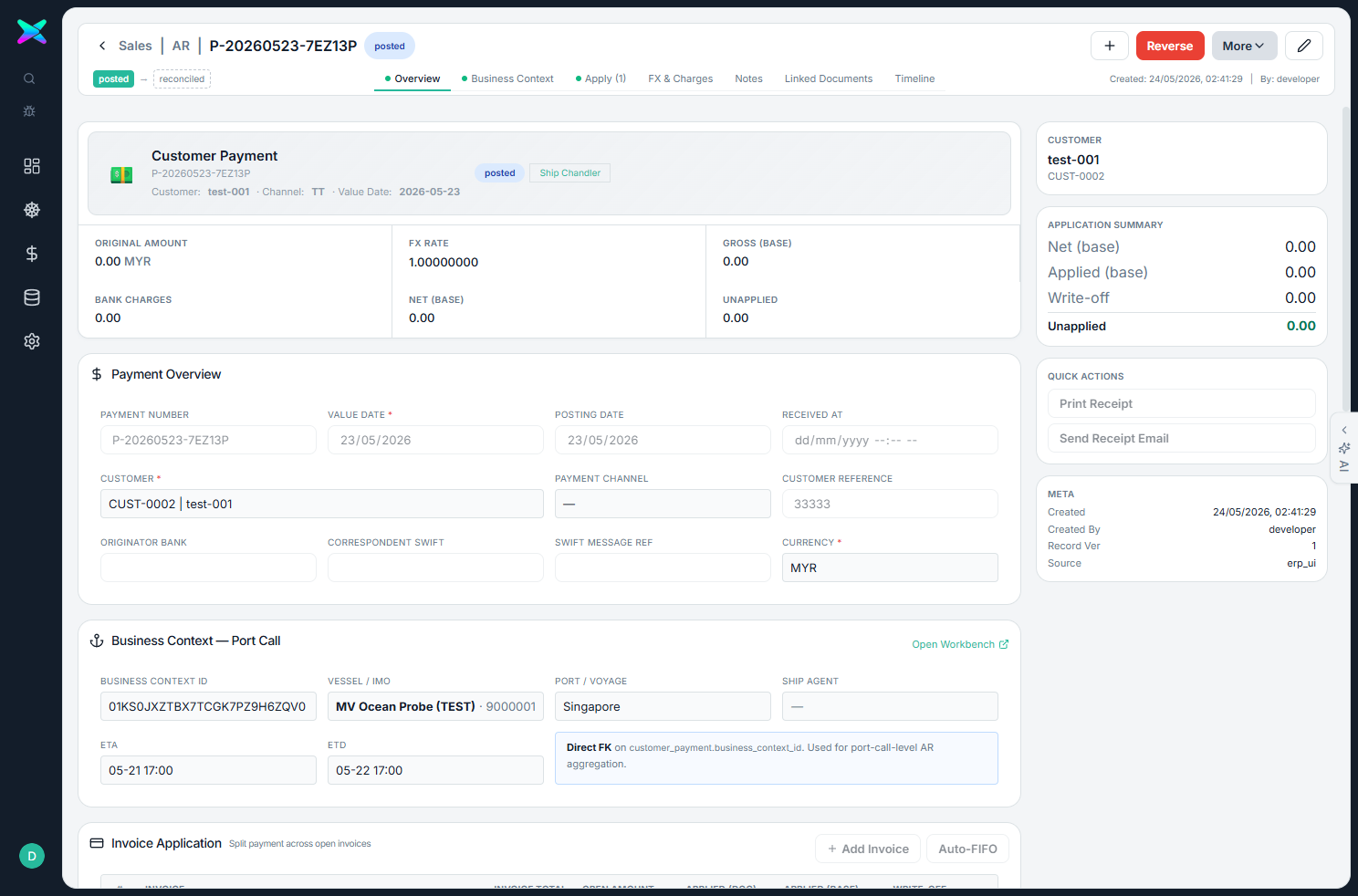
The form is organised into tabbed sections:
| Section | What you fill in |
|---|---|
| Overview | Customer, currency and payment status. |
| Apply | The open invoices this receipt pays, and how much of the money goes to each. |
| FX & Bank Charges · Notes · Linked · Timeline | Exchange gain/loss and bank charges, notes, related documents, and history. The form totals the gross, net, applied and unapplied amounts. |
What you can do
- Post and reverse. It moves draft → posted → reconciled. Post to GL applies the money to the chosen invoices; Reverse unwinds it.
- Settle several invoices at once. One receipt can clear more than one invoice.
- Handle FX and bank charges. Add lines for exchange differences and bank fees.
How to use
- Click + New and pick the customer and currency (or start from an AR invoice, which fills in the whole allocation).
- In Apply, add the open invoices and enter how much each receives — the unapplied amount must reach zero before you can post.
- Post.
⬆ Where it comes from
- The open AR Invoices you pick in the Apply card.
⬇ What happens next
- The invoices' open amount drops and they're marked paid; the receipt is available for bank reconciliation.
What you can print
Nothing yet — a receipt printout is planned.